
Overview
The Voucher Code at Event Level feature allows administrators to manage a single voucher code across one or multiple events using defined criteria and allocations. Each voucher includes criteria-based allocations that control how and where the voucher can be applied. The system validates usage in real time to ensure allocation limits, participant limits, and balances are maintained, preventing overuse and ensuring accurate tracking.
Define a Voucher Code
A voucher in the CIRCUITREE system is a way to apply and track scholarship funds online using a unique code. Similar to a discount code, a voucher can be entered during registration, but instead of applying a discount, it applies scholarship funds as a form of payment.
Define a Voucher Criteria
Voucher criteria define how voucher funds are allocated by setting rules for eligible events and applicable charges, ensuring scholarship funds are applied only where intended.
Key Capabilities
- Single unique voucher code per voucher
- Apply voucher across multiple events using criteria
- Allocate scholarship amounts by criteria
- Event-level control of voucher usage and limits
- Automatic validation to prevent overuse
- Real-time tracking of voucher usage and balances
- Restricted editing after voucher usage begins
- Support pre-filter links with embedded voucher or discount codes that automatically apply at checkout without requiring customer entry
Before You Begin
- Define voucher criteria and allocation amounts
- Determine which scholarship funds will be allocated to Voucher Codes
- If you had not created one yet, follow the following documentation
- Identify which events should be eligible
- Determine participant limits and usage rules
Configuration
Step 1: Create Voucher
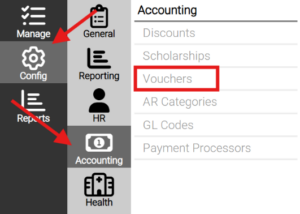
Navigate to: Config → Accounting → Vouchers
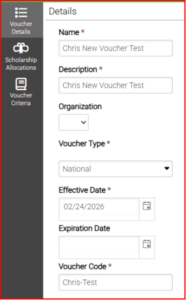
Create a voucher with a single unique code. The code must be unique and can include alphanumeric characters with optional hyphens. Once the voucher has been created, you can add criteria by clicking on the pencil icon on the same line.
Step 2: Define Criteria
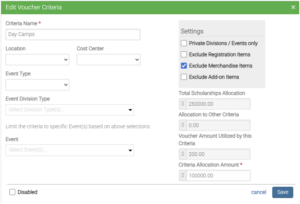
- Add one or more criteria to the voucher
- Assign a unique name to each criteria
- Define allocation amounts for each criteria
- Set event filters (organization, location, event type, Events, etc.)
- Set any restrictions through the Settings option
- Example – vouchers not allowed to pay off Pre-Orders “Merchandise”, not allowed to pay off resource type charges (Add-on Items).
Step 3: Configure Voucher Code Sequence
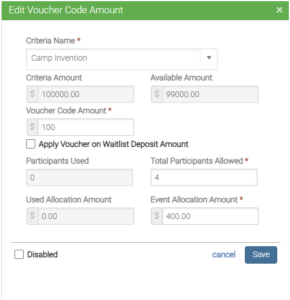
- Assign criteria to voucher codes within event sequences
- Note: By default, the criteria you set in the previous step applies the voucher to all selected events. To finalize setup, go into each event and configure the discount amount and usage limit by editing the placeholder created during the Criteria step. If a Voucher Code Sequence is not configured for an event, the voucher code will not be available for that event, even if it was included in the criteria.
- Define allowed participants
- Set voucher code amount
- Assign event allocation amounts
How It Works
- Voucher codes are applied based on defined criteria and event eligibility
- Each use reduces available allocation and participant limits
- Validation prevents usage beyond allocated amounts
- Canceled registrations restore used voucher amounts
Key Rules
- Only one voucher code per voucher
- Voucher codes must be unique
- Criteria names must be unique within a voucher
- Allocation amounts cannot be reduced below used values
- Voucher amounts are not applied to waitlist deposits unless configured
- Edits are restricted after voucher usage begins
Back Office Options
- You will have administrator options to:
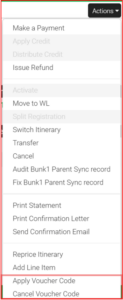
- Apply voucher codes from the Accounting tab within the Registration section
- Cancel voucher codes from the Accounting tab within the Registration section
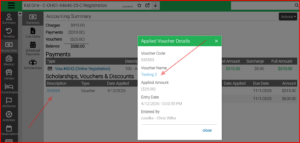
- Access a direct link from an applied voucher on the summary View screen to navigate to details screen which also has an option to view the configuration settings for that voucher
Additional Information
- We have created a feature flag in your company application settings that will allow you to turn off access to this feature for all users. The setting is called “Voucher Visibility”.