
If you are experiencing issues not seeing the correct Store Cards or Inventory in SalesLink 5, here are the steps to take:
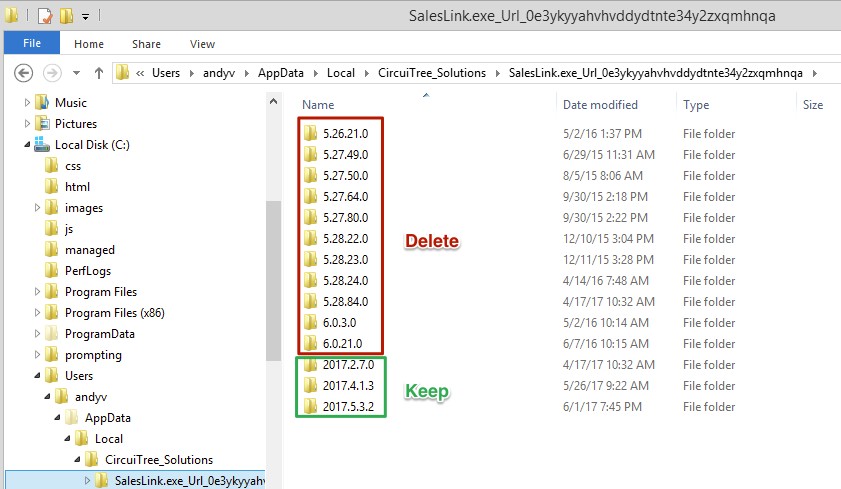
- Navigate to the following location: C:\Users\[username]\AppData\Local\CircuiTree_Solutions\SalesLink.exe_Url_…\
Quick Tip – To access the AppData folder, you need to view hidden files. To enable this setting, follow the directions here: Show hidden files.
- Delete any folder that do not start with 2017.
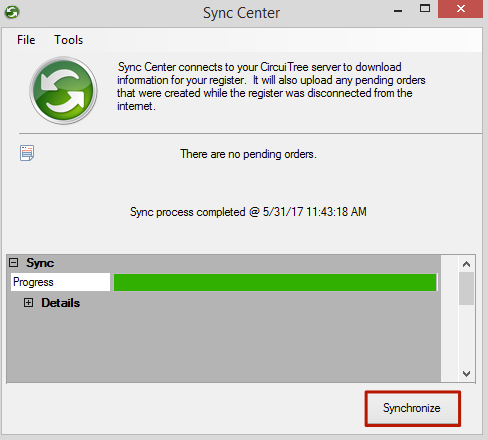
Synchronize Database
- In SalesLink 5, go to Tools > Sync Center > Synchronize.
Delete Local Database
If you are still having issues not finding the correct Attendees or Inventory after completing the above steps, continue to this step:
- In SalesLink 5, go to Tools > Options.
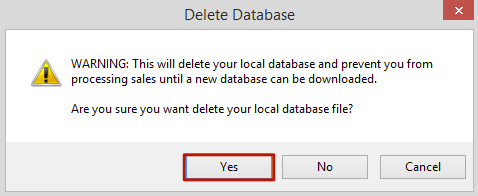
- Click Delete Local Database.

- Click Yes.
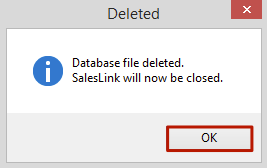
- Click OK.
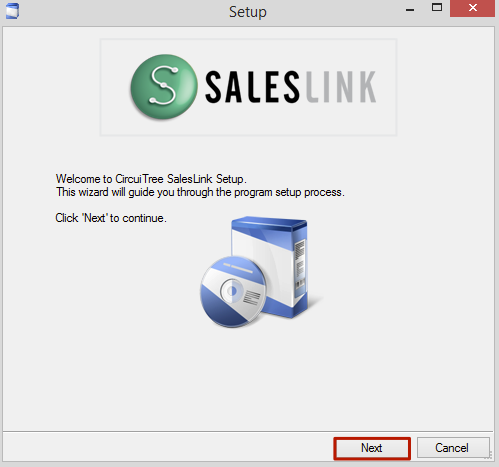
- Open up SalesLink again to continue through the setup process. Click Next to start the wizard.
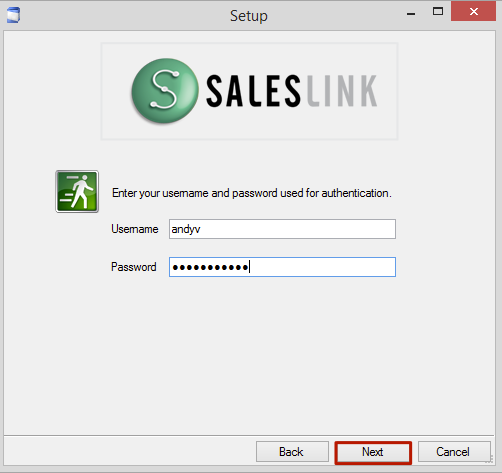
- Enter your Username and Password and then click Next.
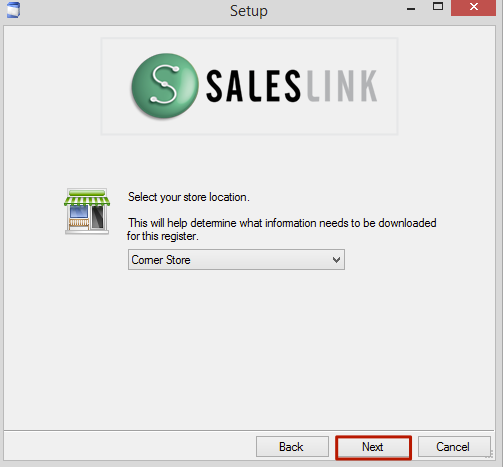
- Select the Store Location and click Next.
- The new database will download and once the process is complete, you can continue to make sales in SalesLink 5.