
When a customer adds an electronic payment method like a credit card or eCheck to their account, they can be used for future transactions. Sometime you may need to add, update or remove one of these payment methods.
Payment Methods can be accessed from two different places, under the Family and Individual.
Family
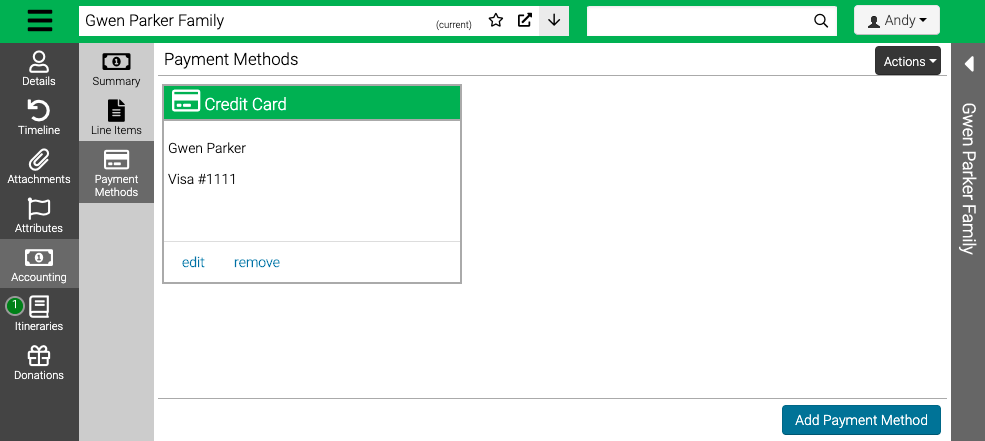
- Look up a Family and go to Accounting > Payment Methods.
Individual
- Look up an Individual and go to Accounting > Payment Methods.

Add Credit Card
- Select Add Payment Method.
- Choose Credit Card. Enter the required information and select Save.
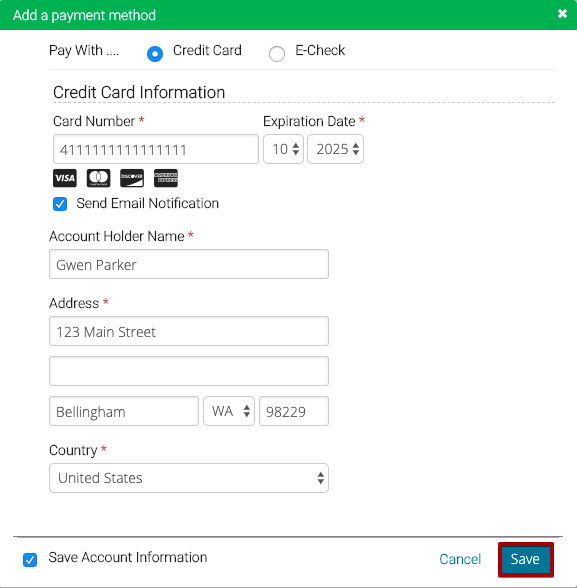
- Card Number – Enter the card number.
- Expiration Date – Enter the date that the card expires.
- Send Email Notification – Select to send an email notification when payments are made.
- Account Holder Name – Defaults to the name of the Individual.
- Address – Defaults to the address of the Individual.
- Save Account Information – Select to save the account.
Add eCheck
- Select Add Payment Method.
- Choose E-Check. Enter the required information and select Save.
- Account Description – Enter a name that the customer uses to identify the account.
- Type – Select Checking or Savings.
- You will be prompted to enter your bank account details — have your routing number and account number on hand.
- Account Holder Name – Defaults to the name of the Individual.
- Address – Defaults to the address of the Individual.
- Save Account Information – Select to save the account.
CircuiTree support will never ask you to provide bank account details over the phone or via email. If you receive an unsolicited request, do not comply — contact support directly.
Edit
- Select Edit to update a Payment Method.
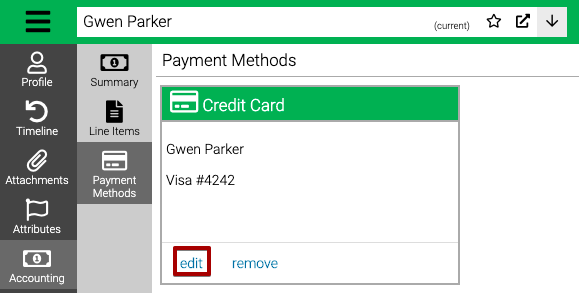
- Update the Expiration Date or Address and select Save.
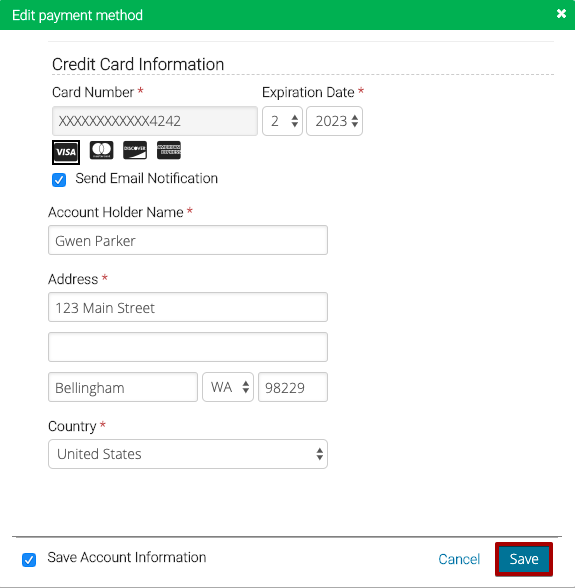
Quick Tip – If you need to update the Card Number, remove the card and then add a new one.
Remove
- Select Remove.
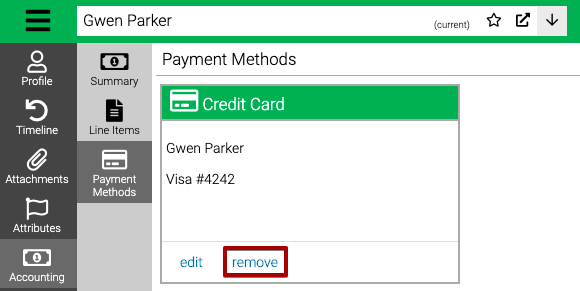
- Type Yes and then select Delete.
